Use case
Batch creating multiple Navisworks search sets .xml file, where each search set contains all elements of a specific Revit category.
This logic can be applied to batch creating search sets based on any Revit parameters filters, or even to create a clash test .xml file.
Step-by-step guide
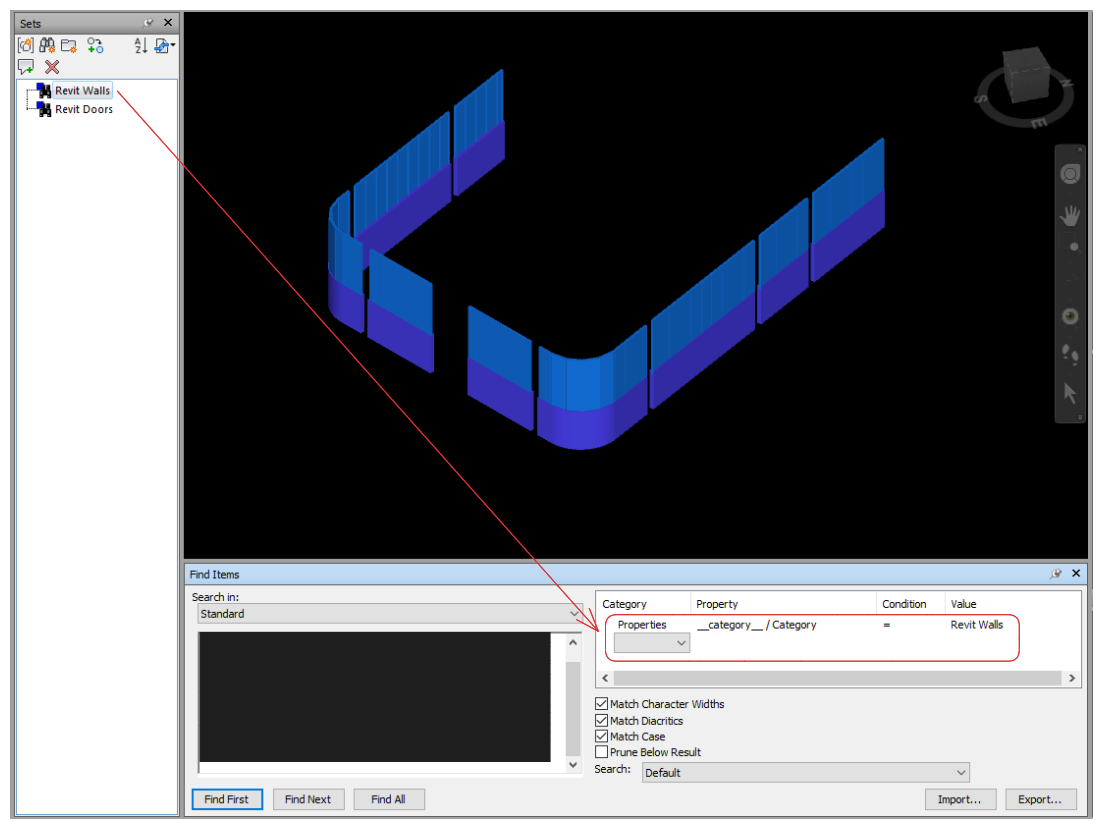
Create first 2 search sets manually in Navisworks to establish baseline structure.
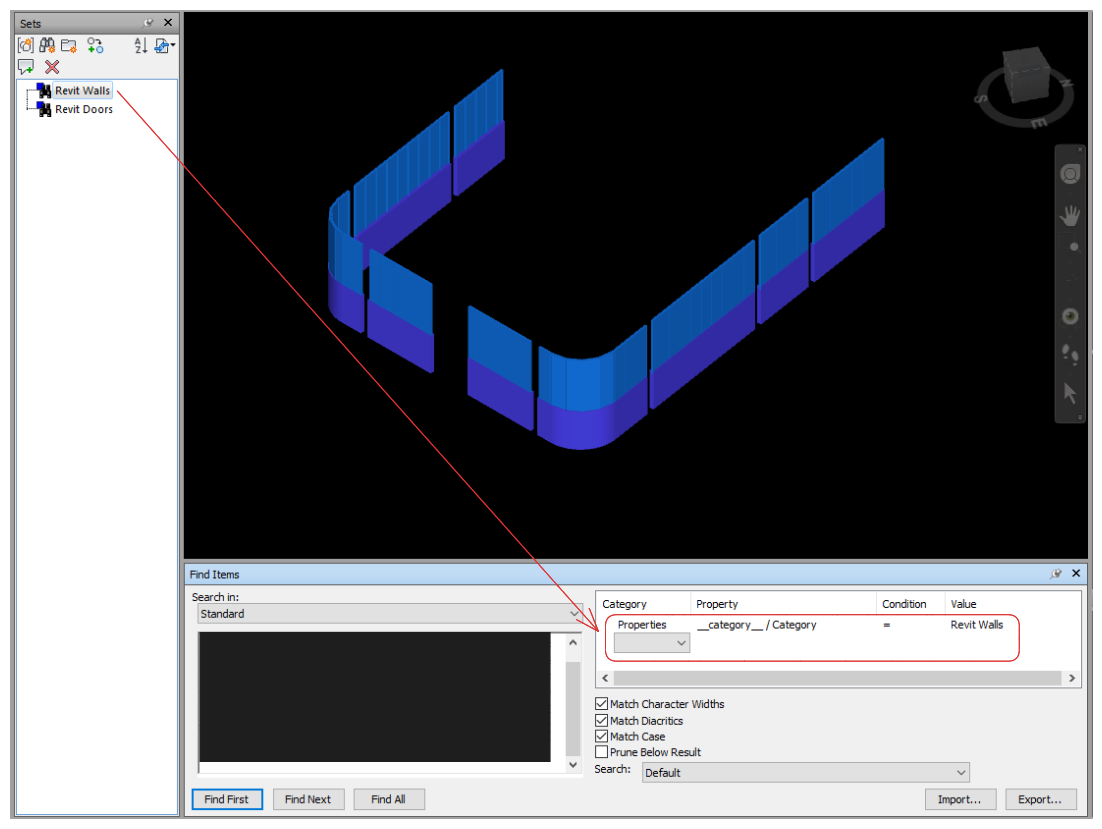
Export these search sets to a .xml file.
Use Excel to edit the .xml file
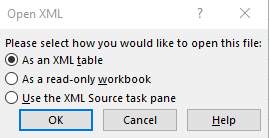
Open the exported .xml file → select As an XML table
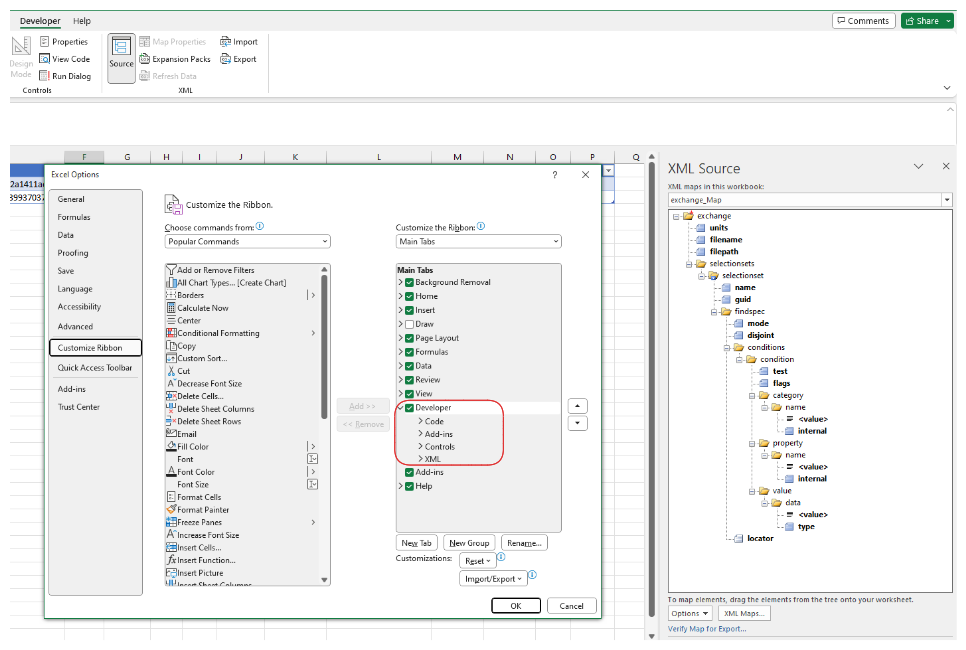
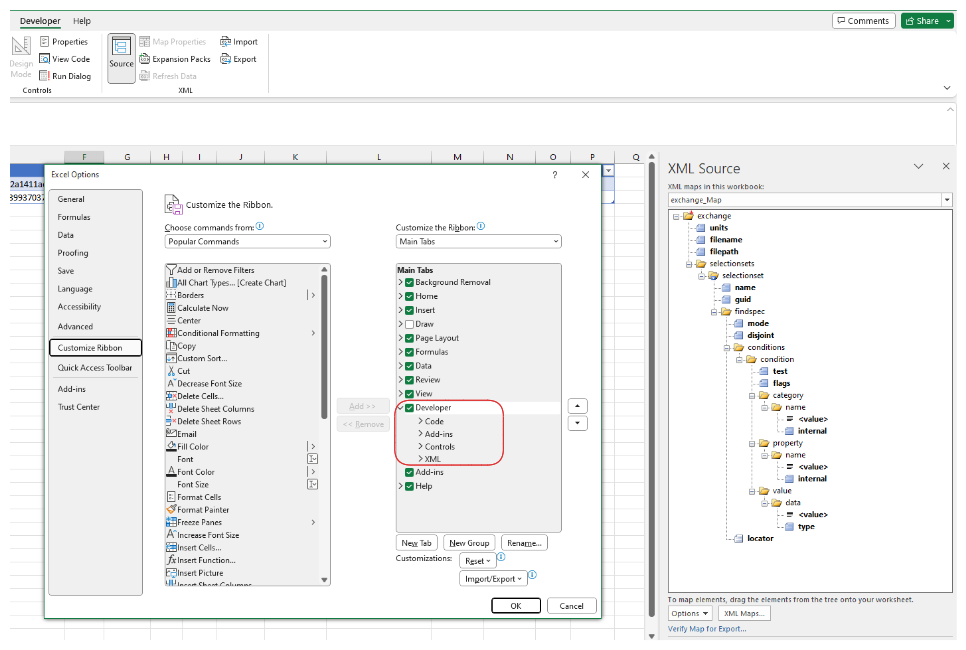
Turn on the Developer tab in the Excel ribbon if it is not already visible.
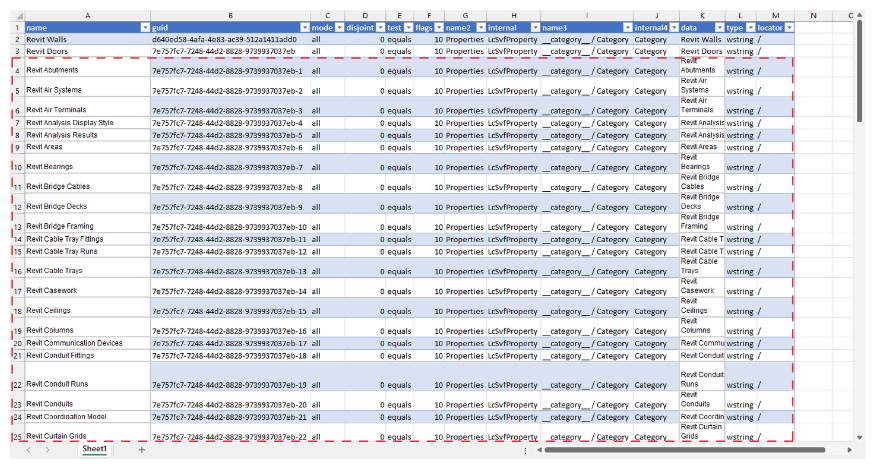
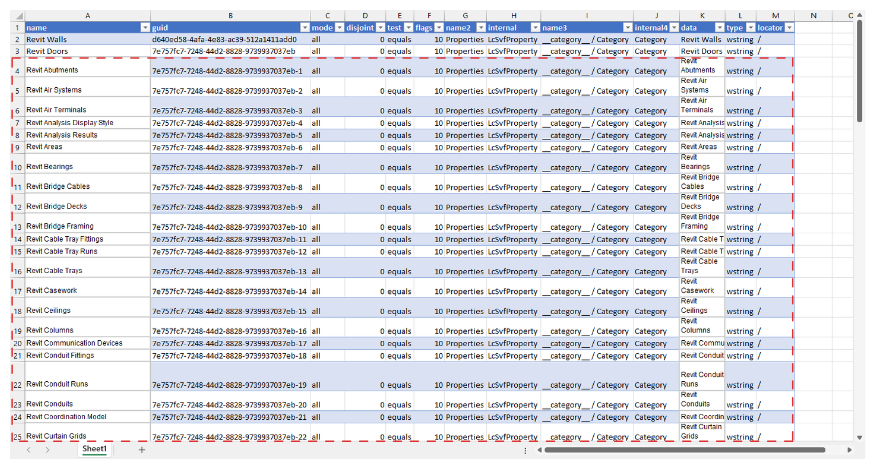
Delete the first 3 columns of the imported .xml table.

Add list of Revit categories, ensuring each category is placed on its own row.
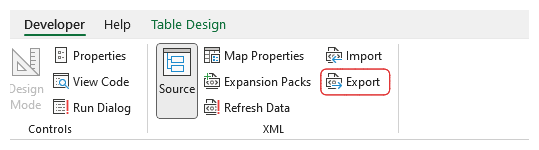
Go to the Developer tab and export the table to a new .xml file.
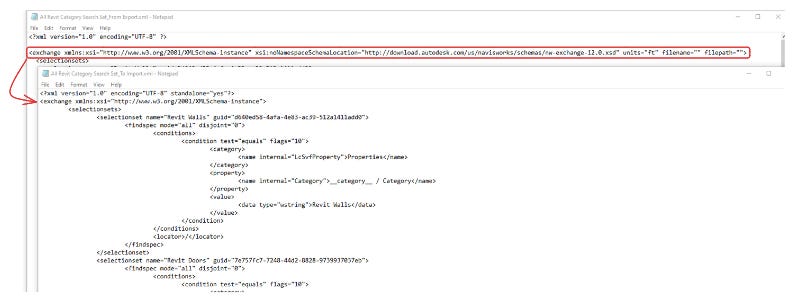
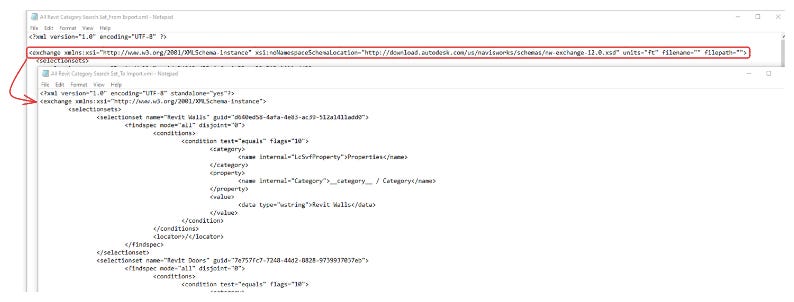
Open the new .xml file with Notepad, edit the second row to restore the correct Navisworks schema header, and save the file.
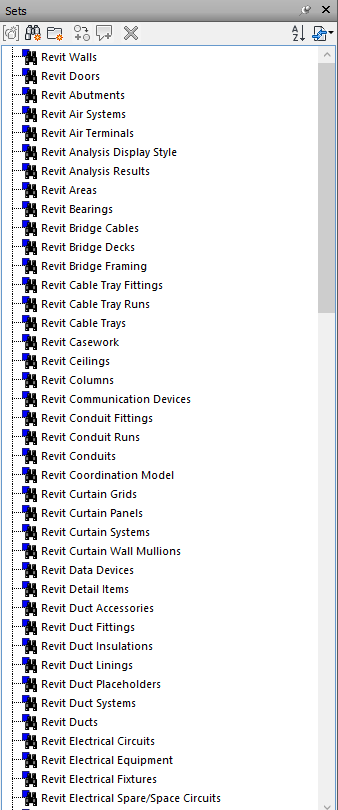
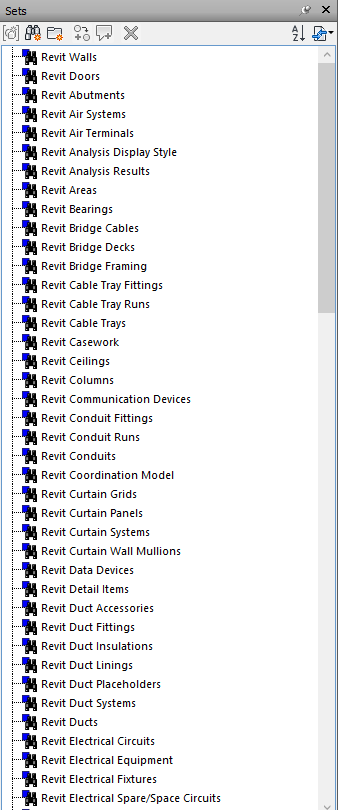
Import the newly modified .xml file back into Navisworks to generate search sets. The result should look like the image below: